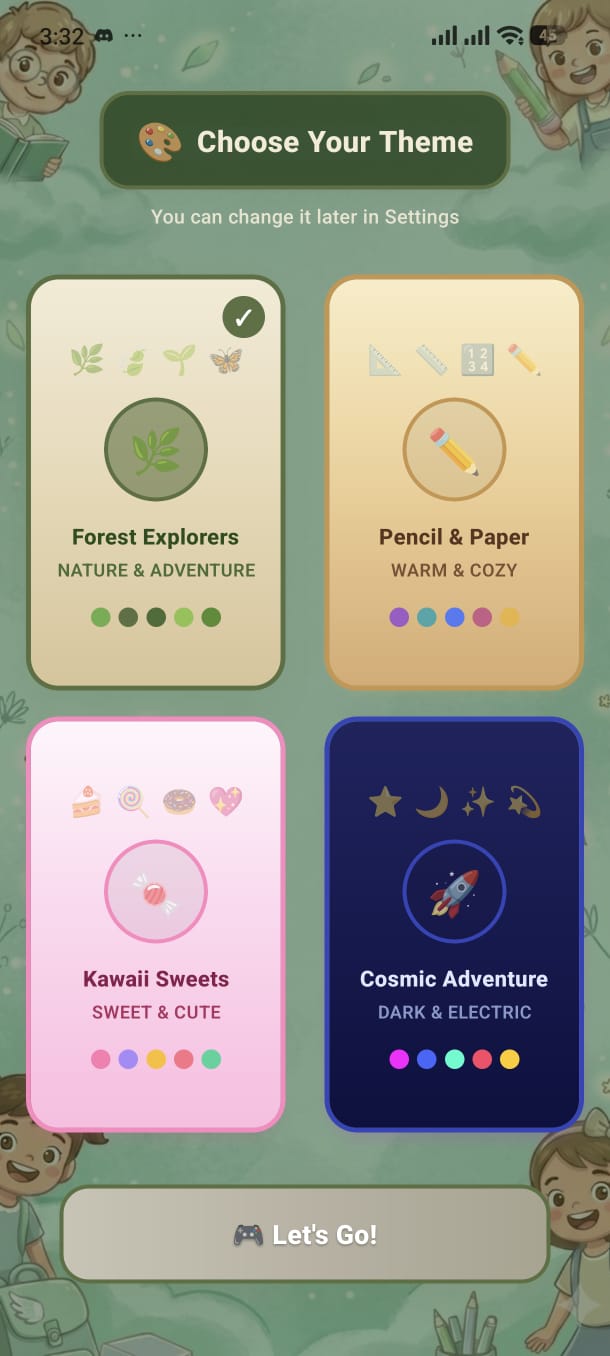
The very first screen you see. Pick a visual style that matches your personality — every colour, button, and background adapts to your choice.
Theme Selection appears the very first time you open Math Kids. It lets you dress the entire app in one of four distinct visual identities. The background, colours, card styles, and glow effects all change based on the theme you choose.
You can change your theme at any time later via Settings → Change Theme, so there is no pressure to pick the "perfect" one right away.
Forest Explorers
Deep greens and earthy tones. Calm, nature-inspired atmosphere.
Pencil & Paper
Bright pencil-and-paper style. Friendly, classroom look.
Kawaii Sweets
Soft pinks and candy pastels. Cute, sweet, and playful.
Cosmic Adventure
Dark space background with neon glows. Epic and immersive.
The whole background preview changes instantly — try all four before deciding.
A ✓ checkmark appears in the top-right corner of the active theme card.
Press the Confirm button at the bottom to lock in your theme and move to Age Selection.
You can switch themes at any time after setup:
Add your screenshot here
guide/img/screen-theme.png